How to Check if a YouTube Channel is Monetized in 2026

Monetization status tells you more than "this creator gets ad money." It signals which niches pay well, what RPM ranges look like in practice, and whether competitors are actually earning from their content. Creators researching new niches, analyzing competitors, or validating channel ideas need this data before investing months of work.
The TubeLab Chrome Extension shows monetization status instantly. Install it, visit any channel or video, and a green badge appears if they're monetized. You also get RPM estimates and revenue predictions. No digging through menus. No guessing. No watching videos hoping an ad plays.
But monetization checking is just the starting point. Once you know which channels are earning, the next question is: which niches pay the best? TubeLab's niche finder answers that with CPM estimates, saturation metrics, and growth trends across every YouTube category.
This guide covers the TubeLab extension, YouTube's current Partner Program requirements, manual verification methods, and how to connect monetization data to niche research for finding the most profitable opportunities.
TubeLab's free Chrome extension adds monetization indicators directly to YouTube's interface. It has 20,000+ users and a 4.2-star rating. No account required.
The extension works across three surfaces on YouTube: channel pages, video pages, and Shorts.
On Channel Pages
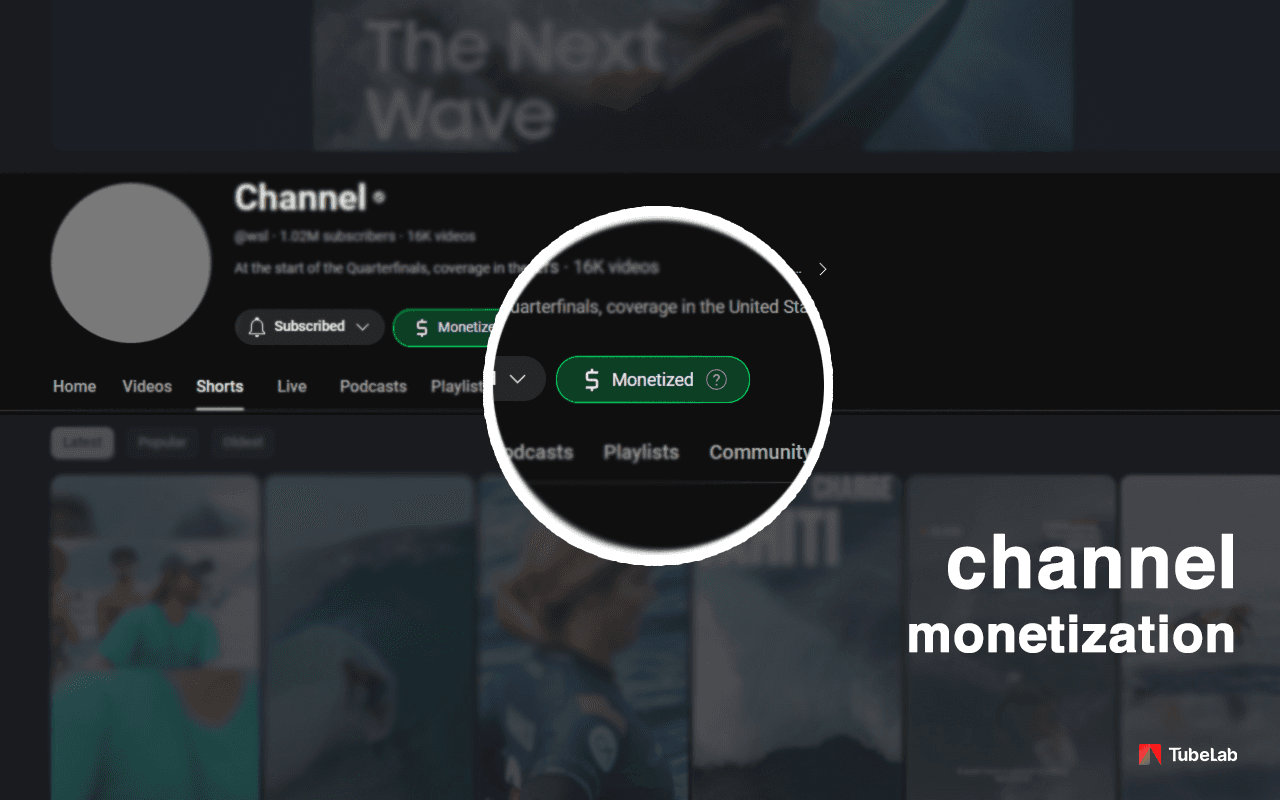
A green "$ Monetized" badge appears next to the Subscribe button. One glance tells you whether the channel is in the YouTube Partner Program and earning from ads. No need to watch their videos, check for membership buttons, or hunt for clues.
The badge also includes a hover state with additional context. You'll see confirmation that traces of monetization were detected, giving you confidence in the result.
On Video Pages
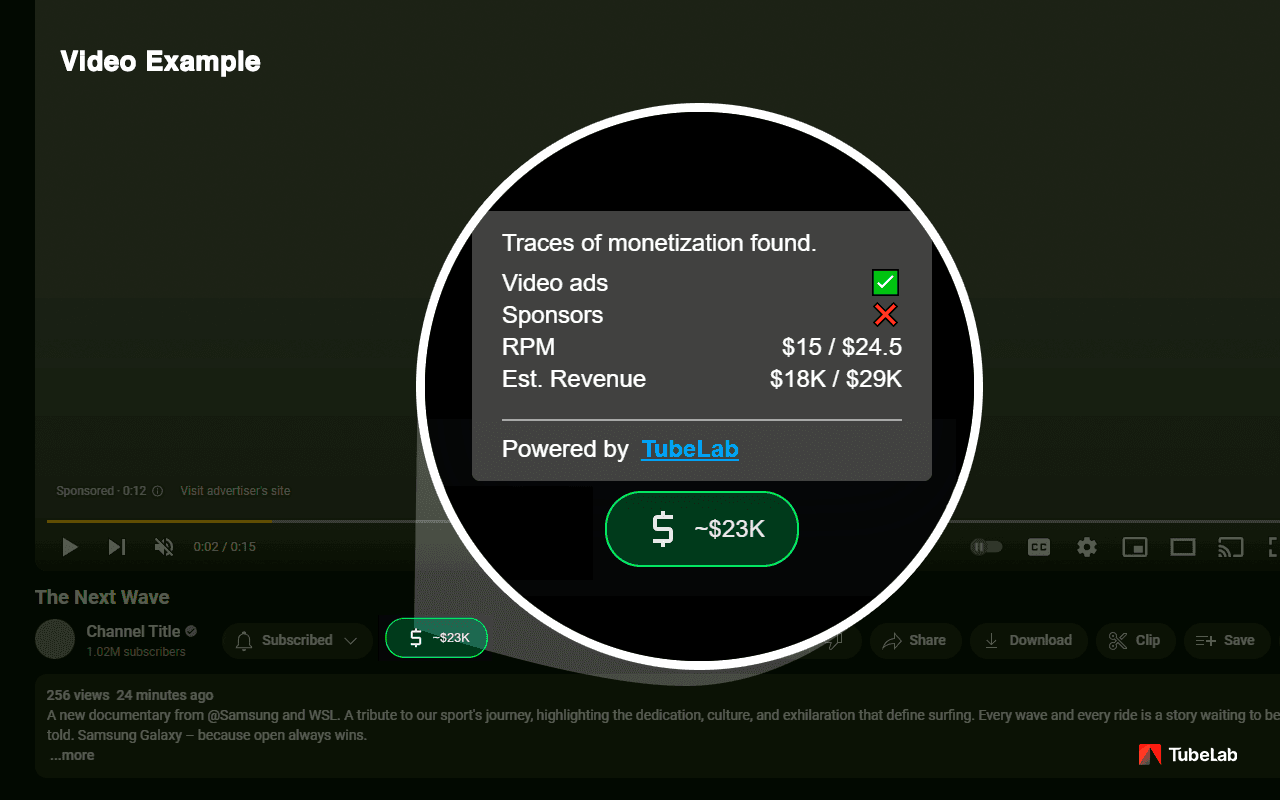
A clickable green dollar icon appears in the video interface. Click it and a popup shows:
The extension also displays a revenue badge directly on the video player showing the estimated total (e.g., "~$23K"). This lets you scan through a channel's videos and quickly spot their top earners.
On YouTube Shorts
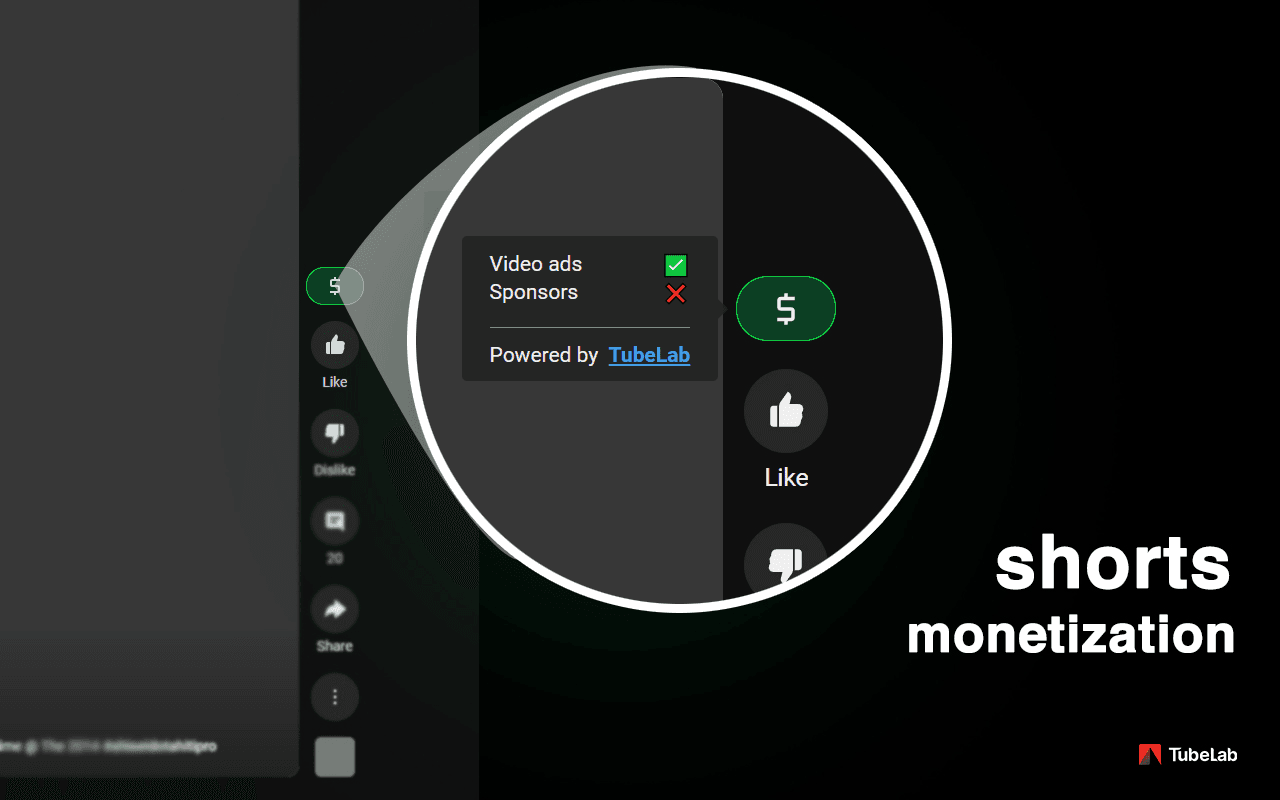
The same monetization detection works for Shorts. A green dollar icon appears in the Shorts interface alongside the like and share buttons. Click it to see whether ads are running and if sponsor content is detected.
Shorts monetization matters because YouTube now shares ad revenue with Shorts creators (45% creator share from a pooled revenue model). Knowing if competitors monetize their Shorts tells you whether the format is worth pursuing in your niche.
Step 1: Search "TubeLab" in the Chrome Web Store or go directly to the extension page.
Step 2: Click "Add to Chrome" and confirm the installation.
Step 3: Navigate to any YouTube channel, video, or Short. The monetization badges appear automatically. No configuration needed.
Step 4: Click the green dollar icon on any video to see the detailed breakdown including RPM and revenue estimates.
The extension works in English, German, Portuguese, Spanish, French, and Italian. It requires no account setup and no subscription. Install and start checking immediately.
The TubeLab extension doesn't access private YouTube data or require any special permissions beyond reading the YouTube page. It detects traces of monetization through publicly visible signals:
The RPM and revenue estimates work by matching video titles and content against a database of 100+ niche-specific RPM benchmarks. The calculation factors in video duration (longer videos have more ad slots), audience geography signals, and total view count.
What the extension tells you upfront:
For research purposes, the accuracy is more than enough to identify monetized channels and estimate niche profitability. You're looking for patterns across multiple channels, not exact dollar amounts from a single video.
YouTube monetization means a channel is enrolled in the YouTube Partner Program (YPP) and earns money from ads, fan funding, or both. Understanding the requirements helps you interpret what "monetized" actually means when you see that badge on a channel.
YouTube restructured the Partner Program in 2023 into two distinct levels. These thresholds remain unchanged through 2026.
Tier 1: Expanded YPP (Fan Funding Only)
Requirements:
This tier unlocks:
It does NOT include ad revenue sharing. Channels at this tier are technically "in YPP" but aren't earning from ads running on their videos.
Tier 2: Full YPP (Ad Revenue + Everything Above)
This tier adds:
When the TubeLab extension shows "Monetized," it's detecting Tier 2 channels running ads on their content. That's the signal that matters for competitive research since it confirms actual ad earnings.
Both tiers share these requirements:
YouTube reviews the whole channel during the application, not just individual videos. They look at the main theme, most-viewed videos, newest uploads, watch time distribution, and all metadata including titles, thumbnails, and descriptions. Channels that seem borderline may get extra scrutiny.
One detail catches creators off guard: watch hours from Shorts views in the Shorts Feed do NOT count toward the 4,000-hour threshold. Only long-form video watch time and live stream watch time qualifies.
A channel crushing it with Shorts might have 50 million Shorts views but only 500 watch hours from long-form content. They'd qualify through the Shorts path (10M views) but not the watch hours path. If they want ad revenue on long-form videos specifically, they still need those 4,000 hours.
This matters when you're researching competitors. A Shorts-focused channel showing "Monetized" might earn primarily from the Shorts revenue pool, which pays differently than long-form ad revenue.
YouTube made several policy updates in 2025 and early 2026 that affect monetization.
July 2025: Inauthentic Content Policy
YouTube renamed its "repetitious content" policy and strengthened enforcement against mass-produced, low-effort videos. Channels producing templated content with minimal variation, image slideshows with thin narration, or AI-generated videos without real human creative input risk losing monetization entirely.
The policy targets what many call "AI slop." Channels pumping out dozens of similar videos per week with AI voiceovers, stock footage, and templated scripts face demonetization. AI-assisted content is still allowed if it shows originality and real human involvement in the creative process.
January 2026: Controversial Topics Relaxation
Videos discussing sensitive subjects like self-harm, abortion, suicide, and domestic abuse can now qualify for full monetization if handled non-graphically. Previously, these topics got limited or no ads regardless of how thoughtfully the content was produced.
Personal accounts, preventative content, and journalistic coverage are now eligible for ads. Some exceptions remain: child abuse, child trafficking, and eating disorder content still face restrictions.
July 2025: Profanity Guidelines Update
Strong profanity (including f-bombs) in the first seven seconds of a video can now earn full ad revenue. YouTube reversed a previous restriction that penalized early-video language. Creators who front-load energy and emotion in their intros no longer get punished for occasional strong language.
2024-2025: AI Disclosure Requirements
YouTube rolled out mandatory disclosure tools requiring creators to label realistic altered or synthetic content. This includes AI-generated deepfakes, voice clones, and synthetic depictions of real events. Consistent failure to disclose may result in content removal or YPP suspension.
If you can't install the TubeLab extension or want to verify manually, several methods work. They're slower, less reliable, and give you no RPM or revenue data.
The most direct indicator: do ads play before or during videos?
Why this falls short: Ad blockers prevent detection entirely. YouTube doesn't serve ads to every viewer on every video. Some videos on monetized channels get marked "not suitable for most advertisers" and show no ads. You might check five videos, see no ads, and wrongly conclude the channel isn't monetized.
Monetized channels have access to fan funding features:
Why this falls short: These features require Tier 1 YPP at minimum, but don't confirm ad revenue monetization. A channel could have memberships active but not be earning from ads at all. You're detecting YPP membership, not full monetization.
Sponsored content often appears on channels that also run ads:
Why this falls short: Sponsorships don't require YPP. A channel with 200 subscribers can land sponsors if their content is good. Seeing sponsorship disclosures tells you brands pay them directly, not that YouTube pays them through ads.
Channels meeting these criteria are probably monetized:
Why this falls short: You're guessing based on circumstantial evidence. Plenty of channels exceed 1,000 subscribers but never applied for YPP, got rejected, or lost monetization due to policy issues.
Manual verification is:
The TubeLab extension solves all of this. One badge tells you monetization status. One click gives you RPM and revenue estimates. Checking 20 channels takes minutes instead of hours.
Checking monetization isn't just curiosity. It's research with real strategic value.
If channels in a niche are monetized, that niche supports ad revenue. Ads run. Creators get paid. The economics work.
If most channels in a niche aren't monetized despite having subscribers and views, something's wrong:
Before investing months building a channel in a new niche, checking competitor monetization confirms you're entering a space where earning is actually possible.
RPM (Revenue Per Mille) is how much a creator earns per 1,000 video views. The TubeLab extension shows RPM ranges for any video, letting you compare earning potential across niches.
Example comparisons:
This matters because view counts alone don't tell you earnings. A video with 100,000 views in a $30 RPM niche earns roughly $3,000. A video with 100,000 views in a $3 RPM niche earns roughly $300. Ten times the difference from the same view count.
Knowing typical RPMs in a niche helps you:
Seeing "Est. Revenue: $18K / $29K" on a competitor's video gives you concrete targets. You can work backward:
This moves YouTube research from vague ("that channel seems successful") to specific ("that video earned approximately $20K from 1.2M views at roughly $17 RPM").
The TubeLab extension flags when videos have sponsorship indicators. This context matters because:
A video with "Sponsors: ✅" and 500K views might be less impressive than an organic video hitting 300K views. The sponsored video had promotional support, possibly paid distribution, and brand involvement. The organic video performed on content quality alone.
Checking individual channel monetization answers "is this channel earning?" The bigger question is "which niches earn the most?" TubeLab's niche finder answers that.
TubeLab's main platform (separate from the free Chrome extension) includes a niche finder with data on every YouTube category. For any niche, you can see:
CPM Estimates
Average CPM (cost per mille, what advertisers pay) by niche. Higher CPMs translate to higher creator RPMs. Finance, insurance, legal, and software niches consistently show CPMs 5-10x higher than entertainment or gaming.
Saturation Metrics
How crowded is the niche? A high-CPM niche with extreme saturation might be harder to break into than a moderate-CPM niche with less competition. The niche finder shows channel density and competition levels.
Growth Trends
Is the niche growing, stable, or declining? A niche with rising viewer interest gives you tailwind. A declining niche means fighting for shrinking attention.
Top Channels
Which channels dominate the niche? How big are they? What's their upload frequency? Studying top performers tells you what success looks like in that category.
Ideal Video Length
What duration performs best in the niche? Some categories favor 8-minute videos. Others reward 20+ minute deep dives. The data shows what's working.
Here's how monetization checking and niche finding work together:
Step 1: Use the Chrome extension to check monetization on channels you're curious about. Note which ones show "Monetized" and what RPM ranges appear on their videos.
Step 2: Spot patterns. If you checked 10 channels in a niche and 8 show RPMs of $20+, that niche pays well. If most show $3-5 RPMs, it doesn't.
Step 3: Open TubeLab's niche finder to see the bigger picture. How does this niche compare to others? What's the saturation? Is it growing?
Step 4: Identify opportunity gaps. Maybe a sub-niche has strong CPMs but lower saturation than the main category. The niche finder surfaces these opportunities.
Step 5: Validate with more monetization checks. Find smaller channels in the sub-niche. Are they monetized? What RPMs show on their videos? This confirms the opportunity is real, not just a data artifact.
Based on both monetization data and niche research, these categories consistently pay above average:
Finance and Investing: $20-$50+ RPM Credit cards, investing strategies, tax advice, cryptocurrency analysis, stock market coverage. Advertisers pay premium rates to reach people making financial decisions.
Business and Entrepreneurship: $15-$35 RPM Startup advice, business strategy, marketing tactics, productivity systems. B2B advertisers and business software companies bid aggressively here.
Software and SaaS: $15-$40 RPM Tutorials for business tools, software reviews, coding education, tech product comparisons. High customer lifetime values make advertisers willing to pay more per impression.
Legal Topics: $20-$45 RPM Legal explainers, law school content, specific legal niches (immigration, personal injury, business law). Law firms pay heavily for client acquisition.
Real Estate: $15-$30 RPM Home buying guides, real estate investing, market analysis, agent advice. High transaction values justify expensive advertising.
Health and Insurance: $15-$35 RPM Health insurance explainers, Medicare content, specific health conditions, wellness advice. Insurance and healthcare companies have large ad budgets.
Lower-RPM categories (but often easier to grow): gaming ($2-$8), entertainment commentary ($3-$10), music ($1-$5), general vlogs ($2-$8). Higher view potential but lower per-view earnings.
The TubeLab niche finder shows current CPM estimates for all these categories and dozens more, updated regularly.
The monetization checker is one piece of the research workflow. Here's how to run a full competitive analysis.
Step 1: Identify Target Channels
Use TubeLab's channel search to find creators in any category. Filter by subscriber count, view count, upload frequency, and growth rate. Pull a list of 15-20 channels across different sizes in your target niche.
Step 2: Check Monetization Status
With the Chrome extension installed, visit each channel. The "Monetized" badge confirms YPP enrollment instantly. Track your findings: how many are monetized? Are smaller channels (10K-50K subs) monetized or just the big ones?
If most channels aren't monetized despite meeting subscriber thresholds, that's a red flag. The niche might have policy issues, low advertiser interest, or other problems.
Step 3: Analyze RPM Across Videos
Click the dollar icon on 3-5 videos per channel. Note the RPM ranges. Build a picture of what's typical:
Step 4: Estimate Channel Revenue
Add up estimated revenues across each channel's recent videos. A rough calculation: monthly views × (average RPM / 1000) = approximate monthly ad revenue.
This tells you what's possible at different audience sizes. A channel getting 500K monthly views at $15 RPM earns roughly $7,500/month from ads. Can you reach that scale?
Step 5: Cross-Reference with Niche Finder
Open TubeLab's niche finder to see category-wide data. How does your observed RPM data compare to the platform's CPM estimates? What's the saturation level? Are there sub-niches with better opportunity?
Step 6: Study Content Patterns
Now that you know the niche pays, study what works. Which video formats get the most views? What titles perform? What thumbnails stand out? TubeLab's outlier finder surfaces videos that dramatically outperformed their channel average, showing you proven formats worth adapting.
The combination of monetization data and niche research reveals gaps:
High CPM + Low Saturation: The dream. A niche that pays well and isn't overcrowded. These exist in sub-niches and emerging topics. The niche finder highlights them.
Growing Audience + Moderate CPM: A niche with rising interest might be worth entering even at moderate RPMs. Growth creates opportunity for new channels to establish themselves before competition intensifies.
Monetized Small Channels: If channels with 5K-20K subscribers are monetized and showing decent RPMs, the niche rewards smaller creators. You don't need to compete with giants to earn.
Sponsorship Activity: Lots of sponsored videos in a niche signals brand interest. Even if ad RPMs are moderate, sponsorship potential adds another revenue stream. The extension's sponsor detection shows where brands are spending.
The extension catches most monetized channels correctly. It detects monetization through publicly visible signals like ad presence, subscriber thresholds, and sponsorship markers. Edge cases exist: some Shorts-only channels, non-English content, and channels with unusual setups may have lower accuracy. For research across multiple channels in a niche, the accuracy is reliable.
Technically yes, but you already know your status from YouTube Studio. The extension shines when checking other channels: competitors, potential collaborators, or channels in niches you're researching.
No. Revenue figures are estimates based on RPM benchmarks for the video's niche, video duration, and view count. Actual earnings depend on audience geography (US viewers pay more than viewers from lower-CPM regions), ad inventory availability, seasonal advertiser spending, and YouTube's revenue share. Treat the numbers as informed approximations.
CPM (Cost Per Mille) is what advertisers pay per 1,000 ad impressions. RPM (Revenue Per Mille) is what creators earn per 1,000 video views. RPM is always lower than CPM because: not every view includes an ad, some viewers use ad blockers, and YouTube takes 45% of ad revenue. The TubeLab extension shows RPM since that's the creator-relevant metric.
Subscriber counts are public, so you can see if they have 1,000+. Watch hours aren't public. But if the TubeLab badge shows "Monetized," the channel met all requirements (subscribers, watch hours or Shorts views, policy compliance) and was accepted into YPP.
Several reasons:
Yes. The green dollar icon appears on Shorts in the interface. Click it to see whether ads are detected and if sponsor content is present. Shorts monetization works differently (pooled revenue model, 45% creator share), but the detection still tells you if the channel participates.
Yes, completely free with no account required. Install and start checking immediately. TubeLab also offers a paid platform ($178.80/year) with additional features: outlier discovery, niche finder, channel search across 400K+ channels, title formula analysis, and API access. The Chrome extension works independently at no cost.
The full platform adds:
At $178.80/year ($14.90/month billed annually), it's the most affordable full-featured YouTube research platform available.
The Chrome extension checks monetization status live when you visit a channel or video. It's not pulling from a cache; it's detecting signals on the current page. The niche finder CPM estimates and database in the main platform update regularly to reflect current advertiser spending patterns.
Monetization data turns YouTube research from guesswork into something concrete. The TubeLab Chrome Extension makes checking instant: install once, and every channel, video, and Short shows monetization status, RPM ranges, and revenue estimates.
For deeper research, the TubeLab platform adds the niche finder, outlier discovery, and channel database that connect individual monetization checks to bigger strategic questions. Which niches pay best? Where's the competition lowest? What content patterns are working right now?
Start with the free extension. Check competitors in your niche. Note their RPM ranges. Then use the niche finder to see where else those patterns exist, maybe with less competition and similar payouts.
Install the Free TubeLab Chrome Extension
For the full research platform including niche finder, outlier discovery, and API access: TubeLab runs $178.80/year. The deepest annual discount in the category (49% off monthly pricing) with no tiers, no upsells, and no feature gating.
Monetization status tells you more than "this creator gets ad money." It signals which niches pay well, what RPM ranges look like in practice, and whether competitors are actually earning from their content. Creators researching new niches, analyzing competitors, or validating channel ideas need this data before investing months of work.
The TubeLab Chrome Extension shows monetization status instantly. Install it, visit any channel or video, and a green badge appears if they're monetized. You also get RPM estimates and revenue predictions. No digging through menus. No guessing. No watching videos hoping an ad plays.
But monetization checking is just the starting point. Once you know which channels are earning, the next question is: which niches pay the best? TubeLab's niche finder answers that with CPM estimates, saturation metrics, and growth trends across every YouTube category.
This guide covers the TubeLab extension, YouTube's current Partner Program requirements, manual verification methods, and how to connect monetization data to niche research for finding the most profitable opportunities.
TubeLab's free Chrome extension adds monetization indicators directly to YouTube's interface. It has 20,000+ users and a 4.2-star rating. No account required.
The extension works across three surfaces on YouTube: channel pages, video pages, and Shorts.
On Channel Pages
A green "$ Monetized" badge appears next to the Subscribe button. One glance tells you whether the channel is in the YouTube Partner Program and earning from ads. No need to watch their videos, check for membership buttons, or hunt for clues.
The badge also includes a hover state with additional context. You'll see confirmation that traces of monetization were detected, giving you confidence in the result.
On Video Pages
A clickable green dollar icon appears in the video interface. Click it and a popup shows:
The extension also displays a revenue badge directly on the video player showing the estimated total (e.g., "~$23K"). This lets you scan through a channel's videos and quickly spot their top earners.
On YouTube Shorts
The same monetization detection works for Shorts. A green dollar icon appears in the Shorts interface alongside the like and share buttons. Click it to see whether ads are running and if sponsor content is detected.
Shorts monetization matters because YouTube now shares ad revenue with Shorts creators (45% creator share from a pooled revenue model). Knowing if competitors monetize their Shorts tells you whether the format is worth pursuing in your niche.
Step 1: Search "TubeLab" in the Chrome Web Store or go directly to the extension page.
Step 2: Click "Add to Chrome" and confirm the installation.
Step 3: Navigate to any YouTube channel, video, or Short. The monetization badges appear automatically. No configuration needed.
Step 4: Click the green dollar icon on any video to see the detailed breakdown including RPM and revenue estimates.
The extension works in English, German, Portuguese, Spanish, French, and Italian. It requires no account setup and no subscription. Install and start checking immediately.
The TubeLab extension doesn't access private YouTube data or require any special permissions beyond reading the YouTube page. It detects traces of monetization through publicly visible signals:
The RPM and revenue estimates work by matching video titles and content against a database of 100+ niche-specific RPM benchmarks. The calculation factors in video duration (longer videos have more ad slots), audience geography signals, and total view count.
What the extension tells you upfront:
For research purposes, the accuracy is more than enough to identify monetized channels and estimate niche profitability. You're looking for patterns across multiple channels, not exact dollar amounts from a single video.
YouTube monetization means a channel is enrolled in the YouTube Partner Program (YPP) and earns money from ads, fan funding, or both. Understanding the requirements helps you interpret what "monetized" actually means when you see that badge on a channel.
YouTube restructured the Partner Program in 2023 into two distinct levels. These thresholds remain unchanged through 2026.
Tier 1: Expanded YPP (Fan Funding Only)
Requirements:
This tier unlocks:
It does NOT include ad revenue sharing. Channels at this tier are technically "in YPP" but aren't earning from ads running on their videos.
Tier 2: Full YPP (Ad Revenue + Everything Above)
This tier adds:
When the TubeLab extension shows "Monetized," it's detecting Tier 2 channels running ads on their content. That's the signal that matters for competitive research since it confirms actual ad earnings.
Both tiers share these requirements:
YouTube reviews the whole channel during the application, not just individual videos. They look at the main theme, most-viewed videos, newest uploads, watch time distribution, and all metadata including titles, thumbnails, and descriptions. Channels that seem borderline may get extra scrutiny.
One detail catches creators off guard: watch hours from Shorts views in the Shorts Feed do NOT count toward the 4,000-hour threshold. Only long-form video watch time and live stream watch time qualifies.
A channel crushing it with Shorts might have 50 million Shorts views but only 500 watch hours from long-form content. They'd qualify through the Shorts path (10M views) but not the watch hours path. If they want ad revenue on long-form videos specifically, they still need those 4,000 hours.
This matters when you're researching competitors. A Shorts-focused channel showing "Monetized" might earn primarily from the Shorts revenue pool, which pays differently than long-form ad revenue.
YouTube made several policy updates in 2025 and early 2026 that affect monetization.
July 2025: Inauthentic Content Policy
YouTube renamed its "repetitious content" policy and strengthened enforcement against mass-produced, low-effort videos. Channels producing templated content with minimal variation, image slideshows with thin narration, or AI-generated videos without real human creative input risk losing monetization entirely.
The policy targets what many call "AI slop." Channels pumping out dozens of similar videos per week with AI voiceovers, stock footage, and templated scripts face demonetization. AI-assisted content is still allowed if it shows originality and real human involvement in the creative process.
January 2026: Controversial Topics Relaxation
Videos discussing sensitive subjects like self-harm, abortion, suicide, and domestic abuse can now qualify for full monetization if handled non-graphically. Previously, these topics got limited or no ads regardless of how thoughtfully the content was produced.
Personal accounts, preventative content, and journalistic coverage are now eligible for ads. Some exceptions remain: child abuse, child trafficking, and eating disorder content still face restrictions.
July 2025: Profanity Guidelines Update
Strong profanity (including f-bombs) in the first seven seconds of a video can now earn full ad revenue. YouTube reversed a previous restriction that penalized early-video language. Creators who front-load energy and emotion in their intros no longer get punished for occasional strong language.
2024-2025: AI Disclosure Requirements
YouTube rolled out mandatory disclosure tools requiring creators to label realistic altered or synthetic content. This includes AI-generated deepfakes, voice clones, and synthetic depictions of real events. Consistent failure to disclose may result in content removal or YPP suspension.
If you can't install the TubeLab extension or want to verify manually, several methods work. They're slower, less reliable, and give you no RPM or revenue data.
The most direct indicator: do ads play before or during videos?
Why this falls short: Ad blockers prevent detection entirely. YouTube doesn't serve ads to every viewer on every video. Some videos on monetized channels get marked "not suitable for most advertisers" and show no ads. You might check five videos, see no ads, and wrongly conclude the channel isn't monetized.
Monetized channels have access to fan funding features:
Why this falls short: These features require Tier 1 YPP at minimum, but don't confirm ad revenue monetization. A channel could have memberships active but not be earning from ads at all. You're detecting YPP membership, not full monetization.
Sponsored content often appears on channels that also run ads:
Why this falls short: Sponsorships don't require YPP. A channel with 200 subscribers can land sponsors if their content is good. Seeing sponsorship disclosures tells you brands pay them directly, not that YouTube pays them through ads.
Channels meeting these criteria are probably monetized:
Why this falls short: You're guessing based on circumstantial evidence. Plenty of channels exceed 1,000 subscribers but never applied for YPP, got rejected, or lost monetization due to policy issues.
Manual verification is:
The TubeLab extension solves all of this. One badge tells you monetization status. One click gives you RPM and revenue estimates. Checking 20 channels takes minutes instead of hours.
Checking monetization isn't just curiosity. It's research with real strategic value.
If channels in a niche are monetized, that niche supports ad revenue. Ads run. Creators get paid. The economics work.
If most channels in a niche aren't monetized despite having subscribers and views, something's wrong:
Before investing months building a channel in a new niche, checking competitor monetization confirms you're entering a space where earning is actually possible.
RPM (Revenue Per Mille) is how much a creator earns per 1,000 video views. The TubeLab extension shows RPM ranges for any video, letting you compare earning potential across niches.
Example comparisons:
This matters because view counts alone don't tell you earnings. A video with 100,000 views in a $30 RPM niche earns roughly $3,000. A video with 100,000 views in a $3 RPM niche earns roughly $300. Ten times the difference from the same view count.
Knowing typical RPMs in a niche helps you:
Seeing "Est. Revenue: $18K / $29K" on a competitor's video gives you concrete targets. You can work backward:
This moves YouTube research from vague ("that channel seems successful") to specific ("that video earned approximately $20K from 1.2M views at roughly $17 RPM").
The TubeLab extension flags when videos have sponsorship indicators. This context matters because:
A video with "Sponsors: ✅" and 500K views might be less impressive than an organic video hitting 300K views. The sponsored video had promotional support, possibly paid distribution, and brand involvement. The organic video performed on content quality alone.
Checking individual channel monetization answers "is this channel earning?" The bigger question is "which niches earn the most?" TubeLab's niche finder answers that.
TubeLab's main platform (separate from the free Chrome extension) includes a niche finder with data on every YouTube category. For any niche, you can see:
CPM Estimates
Average CPM (cost per mille, what advertisers pay) by niche. Higher CPMs translate to higher creator RPMs. Finance, insurance, legal, and software niches consistently show CPMs 5-10x higher than entertainment or gaming.
Saturation Metrics
How crowded is the niche? A high-CPM niche with extreme saturation might be harder to break into than a moderate-CPM niche with less competition. The niche finder shows channel density and competition levels.
Growth Trends
Is the niche growing, stable, or declining? A niche with rising viewer interest gives you tailwind. A declining niche means fighting for shrinking attention.
Top Channels
Which channels dominate the niche? How big are they? What's their upload frequency? Studying top performers tells you what success looks like in that category.
Ideal Video Length
What duration performs best in the niche? Some categories favor 8-minute videos. Others reward 20+ minute deep dives. The data shows what's working.
Here's how monetization checking and niche finding work together:
Step 1: Use the Chrome extension to check monetization on channels you're curious about. Note which ones show "Monetized" and what RPM ranges appear on their videos.
Step 2: Spot patterns. If you checked 10 channels in a niche and 8 show RPMs of $20+, that niche pays well. If most show $3-5 RPMs, it doesn't.
Step 3: Open TubeLab's niche finder to see the bigger picture. How does this niche compare to others? What's the saturation? Is it growing?
Step 4: Identify opportunity gaps. Maybe a sub-niche has strong CPMs but lower saturation than the main category. The niche finder surfaces these opportunities.
Step 5: Validate with more monetization checks. Find smaller channels in the sub-niche. Are they monetized? What RPMs show on their videos? This confirms the opportunity is real, not just a data artifact.
Based on both monetization data and niche research, these categories consistently pay above average:
Finance and Investing: $20-$50+ RPM Credit cards, investing strategies, tax advice, cryptocurrency analysis, stock market coverage. Advertisers pay premium rates to reach people making financial decisions.
Business and Entrepreneurship: $15-$35 RPM Startup advice, business strategy, marketing tactics, productivity systems. B2B advertisers and business software companies bid aggressively here.
Software and SaaS: $15-$40 RPM Tutorials for business tools, software reviews, coding education, tech product comparisons. High customer lifetime values make advertisers willing to pay more per impression.
Legal Topics: $20-$45 RPM Legal explainers, law school content, specific legal niches (immigration, personal injury, business law). Law firms pay heavily for client acquisition.
Real Estate: $15-$30 RPM Home buying guides, real estate investing, market analysis, agent advice. High transaction values justify expensive advertising.
Health and Insurance: $15-$35 RPM Health insurance explainers, Medicare content, specific health conditions, wellness advice. Insurance and healthcare companies have large ad budgets.
Lower-RPM categories (but often easier to grow): gaming ($2-$8), entertainment commentary ($3-$10), music ($1-$5), general vlogs ($2-$8). Higher view potential but lower per-view earnings.
The TubeLab niche finder shows current CPM estimates for all these categories and dozens more, updated regularly.
The monetization checker is one piece of the research workflow. Here's how to run a full competitive analysis.
Step 1: Identify Target Channels
Use TubeLab's channel search to find creators in any category. Filter by subscriber count, view count, upload frequency, and growth rate. Pull a list of 15-20 channels across different sizes in your target niche.
Step 2: Check Monetization Status
With the Chrome extension installed, visit each channel. The "Monetized" badge confirms YPP enrollment instantly. Track your findings: how many are monetized? Are smaller channels (10K-50K subs) monetized or just the big ones?
If most channels aren't monetized despite meeting subscriber thresholds, that's a red flag. The niche might have policy issues, low advertiser interest, or other problems.
Step 3: Analyze RPM Across Videos
Click the dollar icon on 3-5 videos per channel. Note the RPM ranges. Build a picture of what's typical:
Step 4: Estimate Channel Revenue
Add up estimated revenues across each channel's recent videos. A rough calculation: monthly views × (average RPM / 1000) = approximate monthly ad revenue.
This tells you what's possible at different audience sizes. A channel getting 500K monthly views at $15 RPM earns roughly $7,500/month from ads. Can you reach that scale?
Step 5: Cross-Reference with Niche Finder
Open TubeLab's niche finder to see category-wide data. How does your observed RPM data compare to the platform's CPM estimates? What's the saturation level? Are there sub-niches with better opportunity?
Step 6: Study Content Patterns
Now that you know the niche pays, study what works. Which video formats get the most views? What titles perform? What thumbnails stand out? TubeLab's outlier finder surfaces videos that dramatically outperformed their channel average, showing you proven formats worth adapting.
The combination of monetization data and niche research reveals gaps:
High CPM + Low Saturation: The dream. A niche that pays well and isn't overcrowded. These exist in sub-niches and emerging topics. The niche finder highlights them.
Growing Audience + Moderate CPM: A niche with rising interest might be worth entering even at moderate RPMs. Growth creates opportunity for new channels to establish themselves before competition intensifies.
Monetized Small Channels: If channels with 5K-20K subscribers are monetized and showing decent RPMs, the niche rewards smaller creators. You don't need to compete with giants to earn.
Sponsorship Activity: Lots of sponsored videos in a niche signals brand interest. Even if ad RPMs are moderate, sponsorship potential adds another revenue stream. The extension's sponsor detection shows where brands are spending.
The extension catches most monetized channels correctly. It detects monetization through publicly visible signals like ad presence, subscriber thresholds, and sponsorship markers. Edge cases exist: some Shorts-only channels, non-English content, and channels with unusual setups may have lower accuracy. For research across multiple channels in a niche, the accuracy is reliable.
Technically yes, but you already know your status from YouTube Studio. The extension shines when checking other channels: competitors, potential collaborators, or channels in niches you're researching.
No. Revenue figures are estimates based on RPM benchmarks for the video's niche, video duration, and view count. Actual earnings depend on audience geography (US viewers pay more than viewers from lower-CPM regions), ad inventory availability, seasonal advertiser spending, and YouTube's revenue share. Treat the numbers as informed approximations.
CPM (Cost Per Mille) is what advertisers pay per 1,000 ad impressions. RPM (Revenue Per Mille) is what creators earn per 1,000 video views. RPM is always lower than CPM because: not every view includes an ad, some viewers use ad blockers, and YouTube takes 45% of ad revenue. The TubeLab extension shows RPM since that's the creator-relevant metric.
Subscriber counts are public, so you can see if they have 1,000+. Watch hours aren't public. But if the TubeLab badge shows "Monetized," the channel met all requirements (subscribers, watch hours or Shorts views, policy compliance) and was accepted into YPP.
Several reasons:
Yes. The green dollar icon appears on Shorts in the interface. Click it to see whether ads are detected and if sponsor content is present. Shorts monetization works differently (pooled revenue model, 45% creator share), but the detection still tells you if the channel participates.
Yes, completely free with no account required. Install and start checking immediately. TubeLab also offers a paid platform ($178.80/year) with additional features: outlier discovery, niche finder, channel search across 400K+ channels, title formula analysis, and API access. The Chrome extension works independently at no cost.
The full platform adds:
At $178.80/year ($14.90/month billed annually), it's the most affordable full-featured YouTube research platform available.
The Chrome extension checks monetization status live when you visit a channel or video. It's not pulling from a cache; it's detecting signals on the current page. The niche finder CPM estimates and database in the main platform update regularly to reflect current advertiser spending patterns.
Monetization data turns YouTube research from guesswork into something concrete. The TubeLab Chrome Extension makes checking instant: install once, and every channel, video, and Short shows monetization status, RPM ranges, and revenue estimates.
For deeper research, the TubeLab platform adds the niche finder, outlier discovery, and channel database that connect individual monetization checks to bigger strategic questions. Which niches pay best? Where's the competition lowest? What content patterns are working right now?
Start with the free extension. Check competitors in your niche. Note their RPM ranges. Then use the niche finder to see where else those patterns exist, maybe with less competition and similar payouts.
Install the Free TubeLab Chrome Extension
For the full research platform including niche finder, outlier discovery, and API access: TubeLab runs $178.80/year. The deepest annual discount in the category (49% off monthly pricing) with no tiers, no upsells, and no feature gating.